How to import your rides into Cyklot: FIT, GPX, Strava and full archives
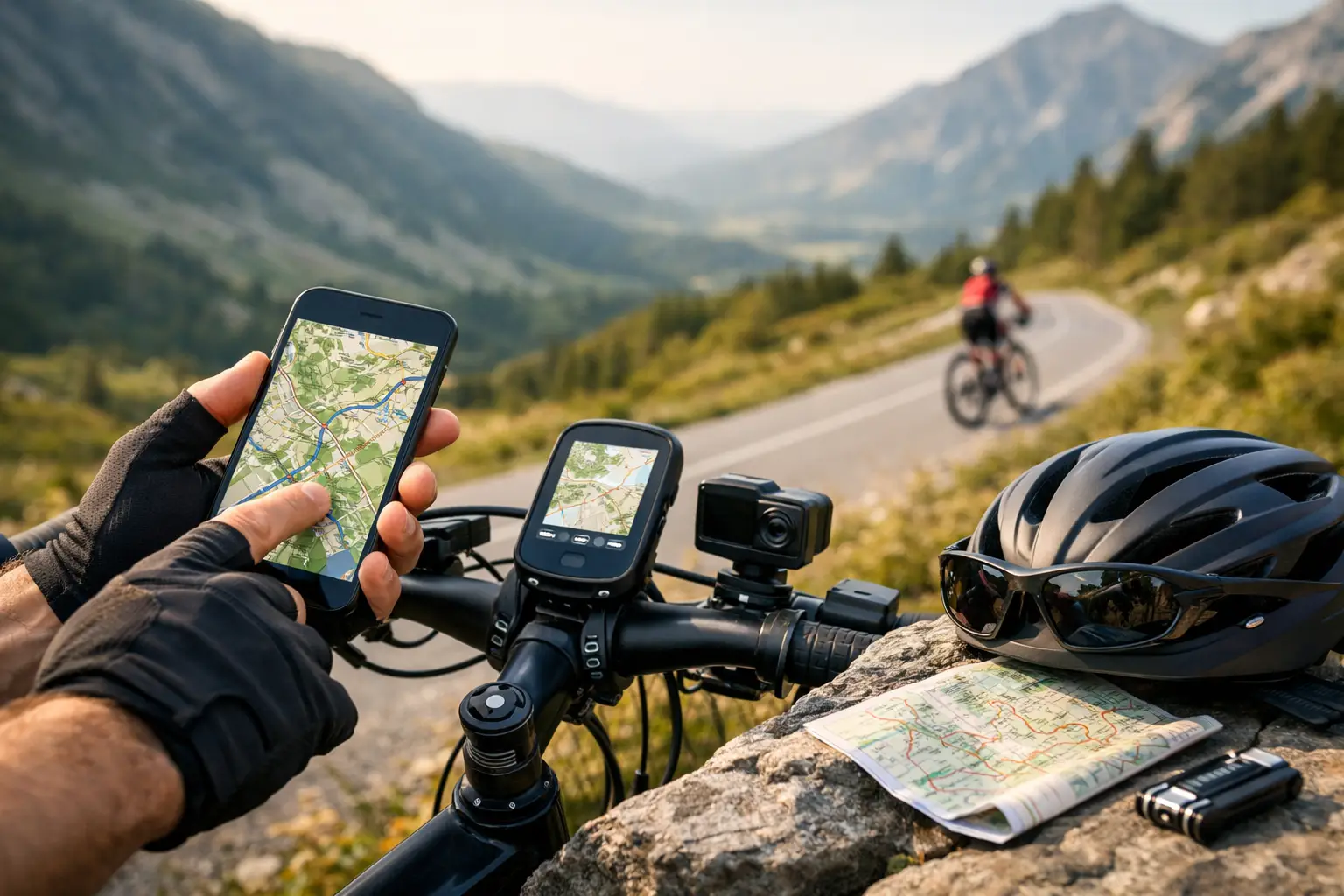
Your training data does not start the day you sign up for a new platform: it has been piling up for years on your bike computer, your watch or your Strava account. The good news is that bringing it into Cyklot is straightforward. This guide walks through the four routes available, what information is read from each file, and how to avoid duplicates and messy data.
Four ways to bring your rides in
Upload individual files in FIT or GPX format, one at a time or several at once.
Connect Strava and sync your latest bike rides.
Import a full archive (ZIP) from a Strava or Garmin Connect export.
Convert or clean a file with the free tools before uploading it.
File upload: FIT and GPX
Almost any bike computer or sports watch (Garmin, Wahoo, Hammerhead, Coros, Suunto, Polar and more) can export a FIT or GPX file, either by plugging it into your computer or from its companion app. On the upload activities page you can drag several files in at once and they are processed in a queue, with the status of each one visible. Each file can be up to 50 MB. If you upload a single file you can give it a name; otherwise the name stored in the file is used or, failing that, the file name.
One important detail: direct upload accepts only .fit and .gpx. If your file is a TCX, convert it first with the free tool you will meet below.
What data is read: FIT and GPX are not the same
This is the difference that matters most if you train with sensors:
FIT: the native format of cycling devices. It holds the session summary (distance, time, average and maximum power, heart rate, cadence and speed, elevation gain, calories) and the ride records: GPS position, altitude, speed, heart rate, power, cadence and temperature when your device recorded them. With those records Cyklot can draw charts of the ride.
GPX: designed for tracks. Cyklot reads the name, the time and the points with latitude, longitude, elevation and time. It does not read power, heart rate or cadence, so do not expect those metrics from a GPX upload.
The practical takeaway: if your device lets you choose, always upload the FIT. You keep all of your sensor data, which is what feeds your zones and your training load.
Connecting Strava
From your profile settings you can connect your Strava account; Cyklot asks for permission to read your activities. Once connected, the sync button imports your recent rides. It helps to know exactly what it does:
It fetches your 50 most recent activities and only the cycling ones (road and outdoor rides, virtual rides and e-bike rides).
It imports the summary data Strava returns: name, date, duration, distance, average and maximum power and heart rate when available, speed, elevation gain and calories.
It does not download second-by-second records, so these activities have no detailed charts or track of their own.
Activities you already imported from Strava are not created again.
It is the most convenient way to get started quickly, but if you want the full detail of a specific ride, upload it as a FIT.
Importing your whole history from a ZIP
Strava and Garmin Connect both let you request an export of all your data as a ZIP file. With the import tool you can upload that ZIP (up to 500 MB) and Cyklot recognises whether it comes from Strava or Garmin Connect by its structure. The import runs in the background, so you can follow the progress: how many files have been processed, imported, skipped or failed.
Inside the archive it looks for FIT and GPX files; anything else (TCX, for example, or individually compressed files) is ignored. If your export is full of TCX files, convert them first. You need to be logged in to import an archive.
How duplicates are detected
Uploading the same ride twice pollutes your statistics, so Cyklot checks whether you already have an activity with the same start time and practically the same distance.
Single upload: you are told it is a duplicate and offered a button to upload it anyway if you really want another copy.
ZIP import: rides you already have are simply skipped, with a slightly wider distance tolerance, and counted as skipped.
Strava sync: it avoids repeating what it already imported from Strava, but it does not compare against files you uploaded by hand. If you use several routes for the same period, check your list so you do not end up with the same ride twice.
Free tools: convert and edit
The converter turns your files between FIT, GPX, TCX and CSV, up to 25 MB per file, with no registration needed. Files are processed on the server and are not stored. A conversion cannot invent data the original did not have: converting a GPX to FIT will not make power appear if it was never recorded.
There is also an editor for FIT and GPX files that lets you trim the start or the end, remove idle stops, smooth the GPS and merge two files. You can download the result or, when logged in, save it as a new activity. It is handy when you forgot to stop your bike computer after reaching the café.
Tips for clean data
Calibrate your power meter (zero offset) before heading out, especially if it is cold or the temperature has changed. An uncalibrated meter drags errors into all your averages.
Wait for a GPS fix before you start recording, to avoid the classic initial jump of imaginary kilometres.
Turn on auto-pause if you stop often. Without it, traffic lights and coffee stops count as time at 0 W and pull your averages down. Cyklot takes the duration from the timer time recorded in the FIT file.
Check your heart rate strap: moisten it and wear it snugly to avoid absurd spikes at the start.
Use one source per ride: choose between file and Strava for each period and you will avoid duplicates.
Prefer FIT over GPX whenever you can; GPX does not carry your sensors.
Next step
Start with your latest ride: upload a FIT or GPX file, or bring in your whole history at once with the full archive import. If your file is in another format, run it through the free converter first.